Keep your lists organized and focused
Filter a list by status, tags, and contact data, tag your prospects, and rename, archive, and restore lists to keep your workspace tidy.
As your lists grow, two things keep them workable: filtering a list down to the candidates that need attention, and tidying up the lists themselves.
Open a list
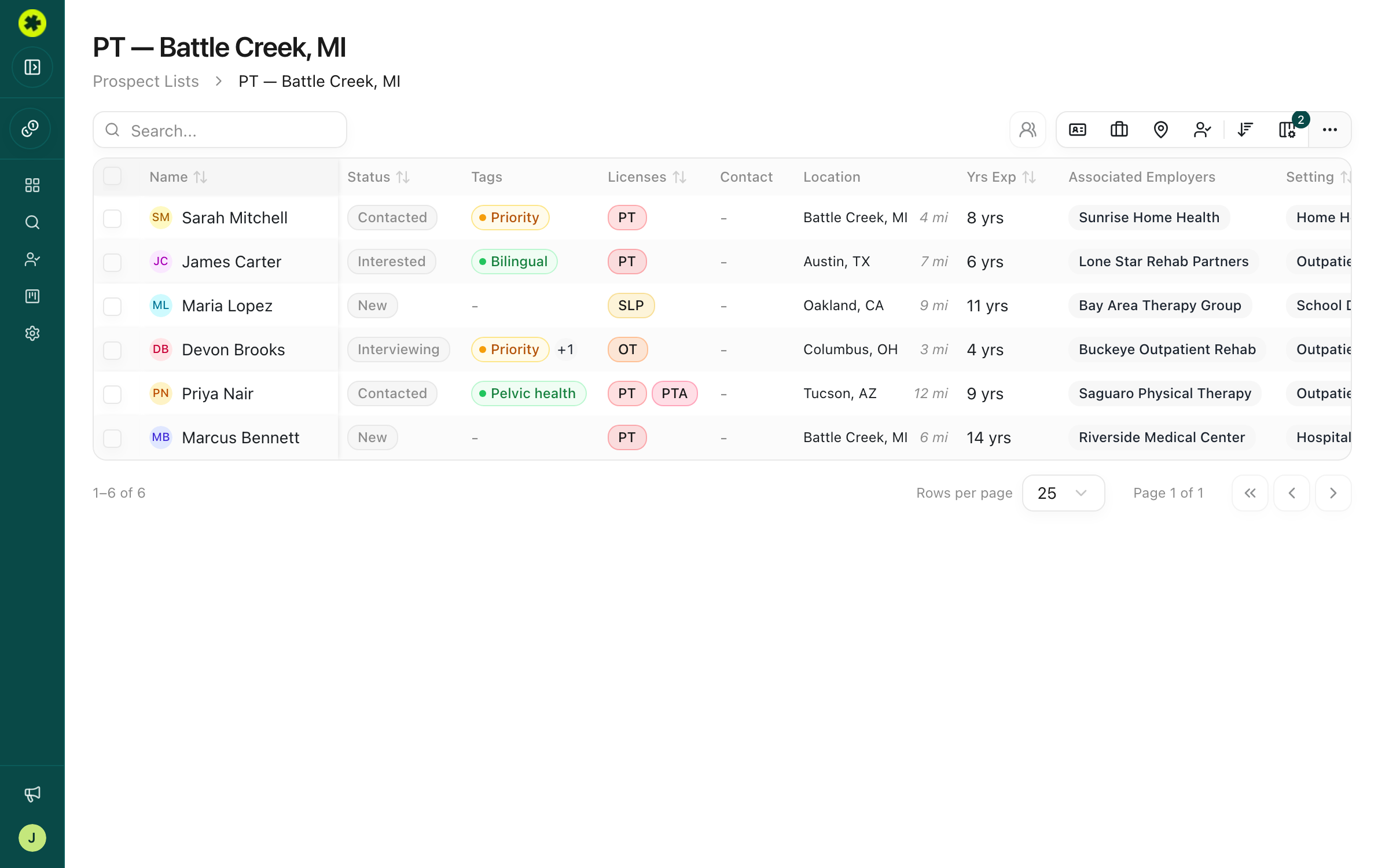
Click Prospect Lists in the left sidebar, then click a list's name to open it. You'll see every candidate on the list in a table — name, status, licenses, location, employer, and more.
Focus on who's next
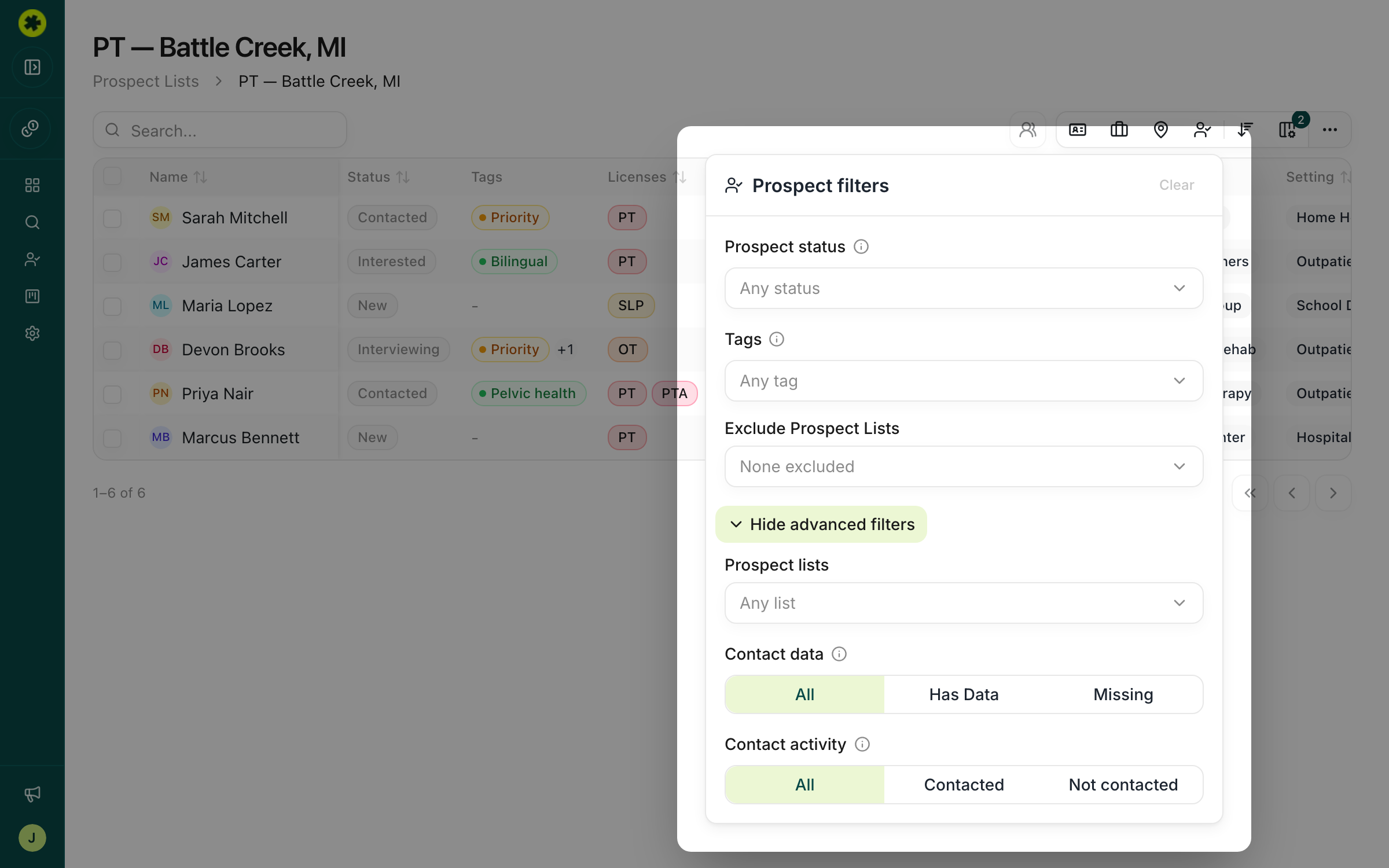
Filtering only changes which rows are shown — it never alters or removes any data. In the toolbar above the table, click the filter icon to open the Prospect filters panel, and narrow the list from there:
- Prospect status — narrow to a stage: New, Contacted, Interested, Interviewing, Hired, Exported, Not Interested, or Archived.
- Tags — the Tags field shows "Any tag" until you pick one. Select one or more tags; the list matches any of the tags you choose.
Click Show advanced filters to reveal two more:
- Contact data — All, Has Data (a verified email or phone is on file), or Missing (still needs a contact lookup).
- Contact activity — All, Contacted (already reached out to), or Not contacted (no outreach yet).
The table updates as you change each filter, and the filter icon shows a badge with how many filters are active. Close the panel by clicking the filter icon again or clicking outside it. You can also click any column header to sort — for example by Last Contacted to surface people who've gone quiet.
Tag your prospects
Tags are free-form labels you can apply to prospects to group them however you work — by discipline, priority, sub-market, or anything else. In the Tags cell on a prospect, click Add tag and pick or create one; tags are shared across your organization, so the whole team draws from the same vocabulary. Once prospects are tagged, use the Tags filter above to focus the list on them.
Rename or update a list
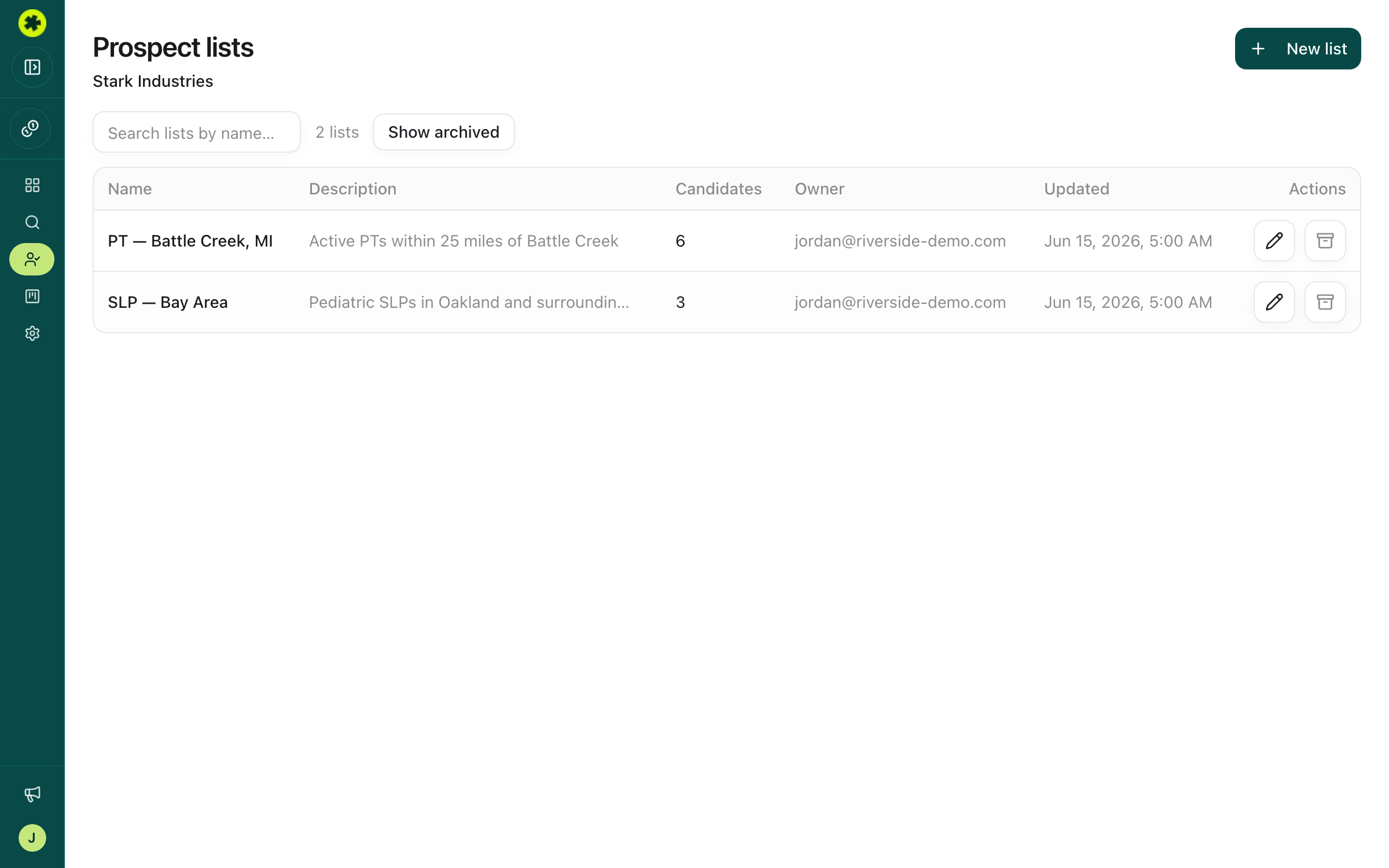
On the Prospect Lists page, click Edit on a list's row to rename it or update its description, then Save changes. Keeping the description current is what makes a shared list useful to the rest of the team.
Archive and restore
Done with a list for now? Click Archive on its row and confirm — it drops out of your default view but isn't deleted. To bring it back, click Show archived at the top of the Prospect Lists page and restore it.
Troubleshooting
My list summary shows more candidates than I can see in it.
A list hides candidates whose license is expired or whose status is unknown, so the visible count can be lower than the summary total. Those candidates are still on the list — they're just filtered out of the default view.
A candidate disappeared from my list.
They were most likely set to Archived status, which hides them from the default view. Filter the Status column to include Archived to see them again and change the status back.
A list I archived is gone.
Archived lists are hidden, not deleted. Click Show archived at the top of the Prospect Lists page to view and restore it.
Does filtering remove candidates from my list?
No — filters only change which rows are displayed. Nothing is edited or removed, and clearing the filter brings everyone back.
Related articles
Build a shortlist of candidates to pursue
Save candidates from your search into a named list — one list or several — with duplicates handled automatically.
Finding CandidatesSearch for clinicians in your market
Build a targeted search by location, license, specialty and experience to surface the clinicians who fit your role.