Export candidates to a spreadsheet
Download your prospects as a CSV in a ready-to-import format for a client, a spreadsheet, or your ATS.
When you need your prospects out of Pickle as a file — to share with a client, open in Excel or Google Sheets, or import into another system — you can download the list as a CSV in a few clicks.
Download a CSV
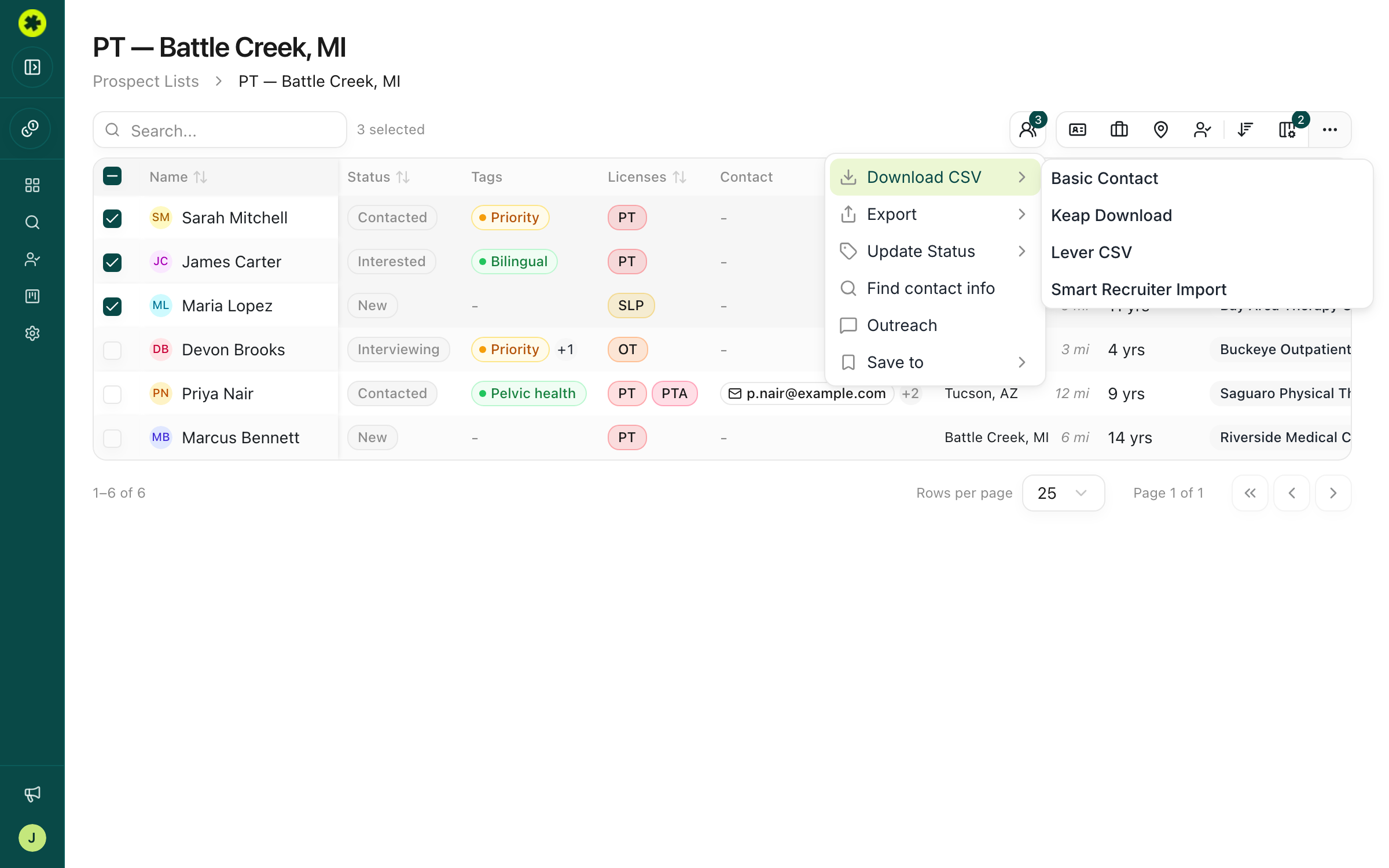
Open a prospect list and check the box next to each candidate you want to export (the header checkbox selects the whole page). Click Actions in the toolbar, hover Download CSV, and choose a template. The file downloads right away — there's no confirmation step — and its name includes the list and template (for example [JS] PT - Denton TX - Basic Contact.csv).
Pick the right template
There are four built-in formats:
- Basic Contact — a general-purpose spreadsheet (name, license, location, employer, contact fields). Use this for a client or a plain export.
- Keap Download — mapped to Keap (formerly Infusionsoft) contact fields.
- Lever CSV — column names and order matched to Lever's candidate import.
- Smart Recruiter Import — mapped to SmartRecruiters' candidate fields.
Troubleshooting
The contact info columns in my CSV are blank.
Those fields only fill in for candidates whose contact info you've already unlocked. Run Find contact info on the candidates first, then export.
I clicked a template but don't see a file.
The download starts immediately with no dialog, so check your browser's downloads folder. The file is named after the list and the template you chose.