Reach out to many candidates at once
Prepare personalized outreach drafts for a batch of candidates, reviewing each one, then send them individually.
Bulk outreach lets you prepare personalized messages for a batch of candidates quickly — without blasting the same template to everyone. Pickle steps through your selection one at a time so you can review each draft, then saves them all as drafts. Sending happens afterward, per candidate.
Start bulk outreach
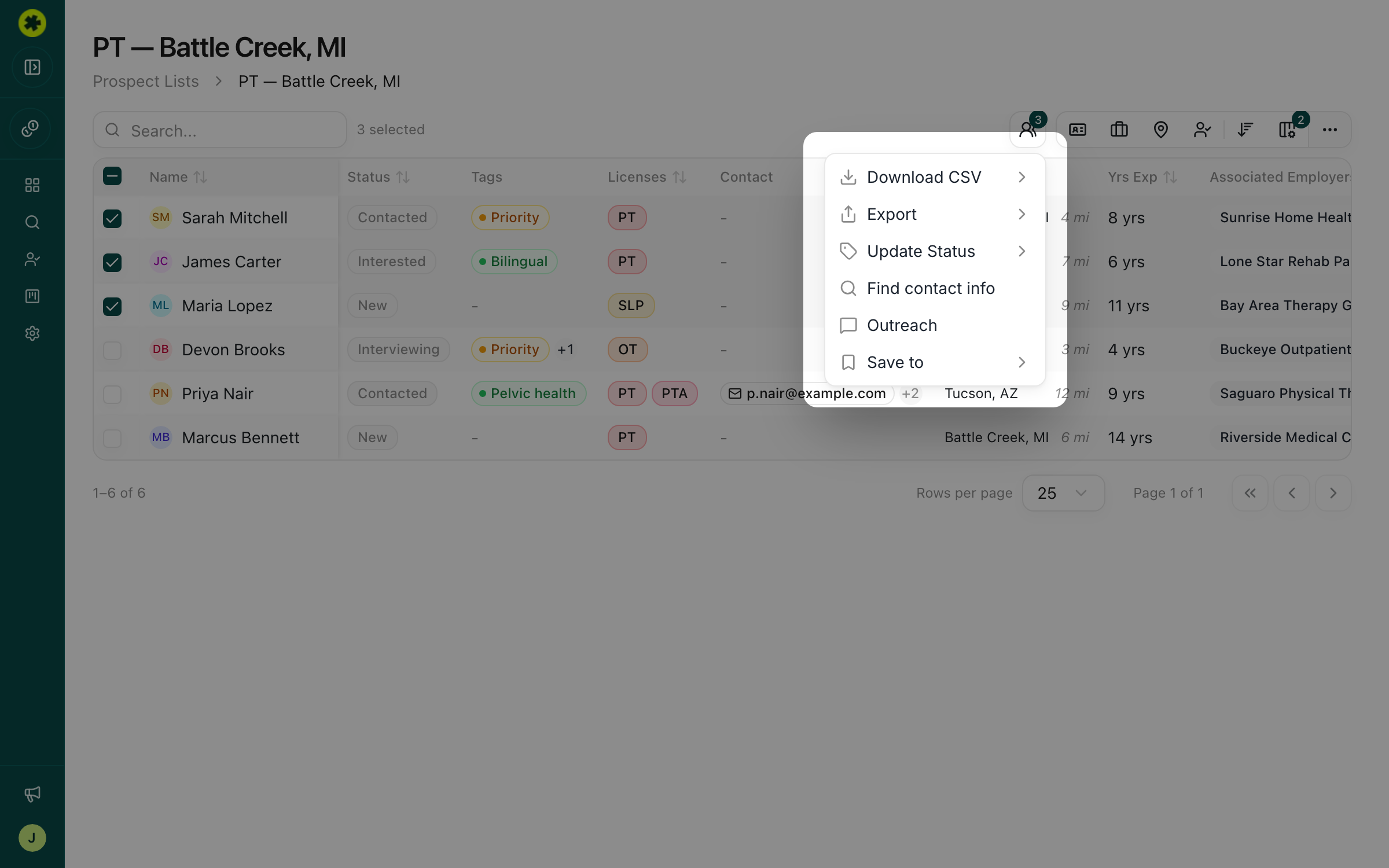
In a prospect list, check the box next to each candidate you want to message, then click Actions in the toolbar and choose Outreach. The Bulk outreach dialog opens.
Review each draft
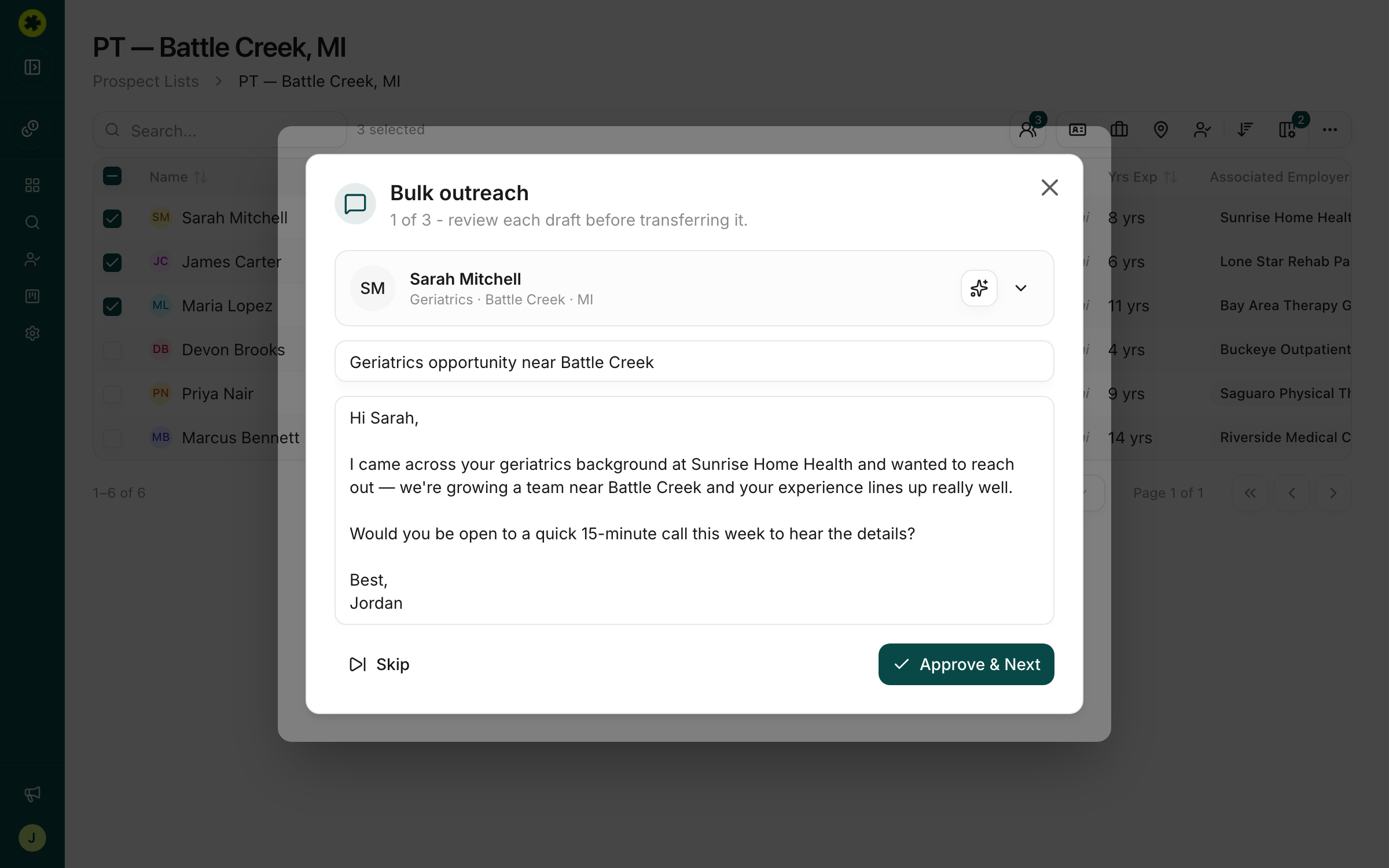
The dialog shows "N of M — review each draft before transferring it," with one candidate's card at a time. For each person you can:
- Click the sparkle icon to generate a message with AI (same Channel and Tone options as single outreach), or
- Type a message manually in the text area.
Approve or skip each one
- Approve & Next — approves the current draft and moves to the next candidate. (This does not send — it just marks the draft as ready.)
- Skip — moves on without a message for that candidate.
Save the drafts
When you've been through everyone, click Save as draft to save every approved message at once. Bulk outreach only saves drafts — it doesn't send from here, and closing the dialog with the X discards the run.
Then send them
Your saved drafts land in each candidate's Outreach tab. Open a candidate and send from there using Open in Email Client or Copy & Open LinkedIn — see draft and send a message. Sending is always the per-candidate hand-off; the bulk flow just gets all your drafts ready in one pass.
Troubleshooting
Does bulk outreach send a message to everyone at once?
No. Bulk outreach only prepares and saves drafts. It steps through candidates one at a time so you can review and customize each, then saves them. You send each message individually afterward from the candidate's Outreach tab.
I finished bulk outreach but the messages don't show as sent.
That's expected — bulk outreach saves drafts, not sent messages. You'll find each draft in that candidate's Outreach tab; open it and use Open in Email Client or Copy & Open LinkedIn to actually send.
Related articles
How to reach out to a candidate
The three ways to contact candidates — one at a time, in bulk, or through your ATS — and how to choose.
Contact Info & CreditsGet a candidate's contact info
Unlock verified email and phone for a single candidate or a whole batch at once.
OutreachImprove your response rate
Simple habits — personalization, short messages, and testing one thing at a time — that get more replies.