Log your touchpoints and notes
Record calls, emails and texts with an outcome, and leave team-visible notes that follow the candidate.
Every call, email, and note you log becomes part of a candidate's shared history — so when a teammate picks them up, they can see exactly who reached out, when, and what came of it. It's what turns a list into a real relationship record.
Open the Activity tab
In a prospect list, click a candidate's row to open the Candidate details panel, then click the Activity tab. It shows every touchpoint logged so far (or "No activity yet"). Click Log activity to add one.
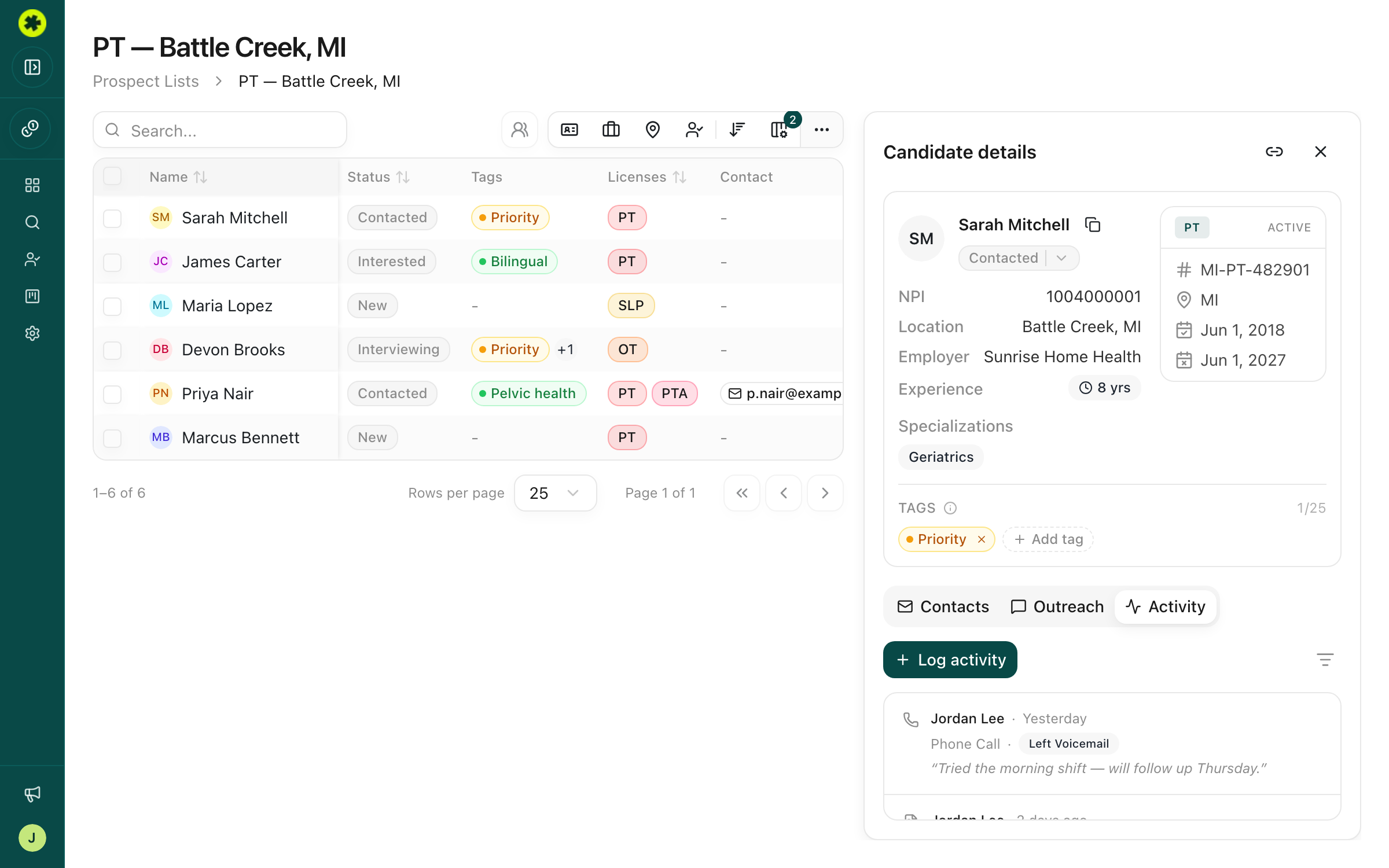
Log a contact attempt
In the Log Activity dialog, choose Log Contact, then fill in:
- Channel (required) — Phone Call, Email, SMS, Voicemail, LinkedIn Message, or LinkedIn Connection.
- Date (required) — defaults to today; change it to back-fill an attempt from before you started using Pickle.
- Outcome (optional) — Connected, No Answer, Left Voicemail, Replied, No Response, Meeting Scheduled, or Bounced.
- Note (optional) — details about the conversation.
Click Log Contact to save. The entry appears in the Activity feed, and the Last Contacted column on the list updates automatically.
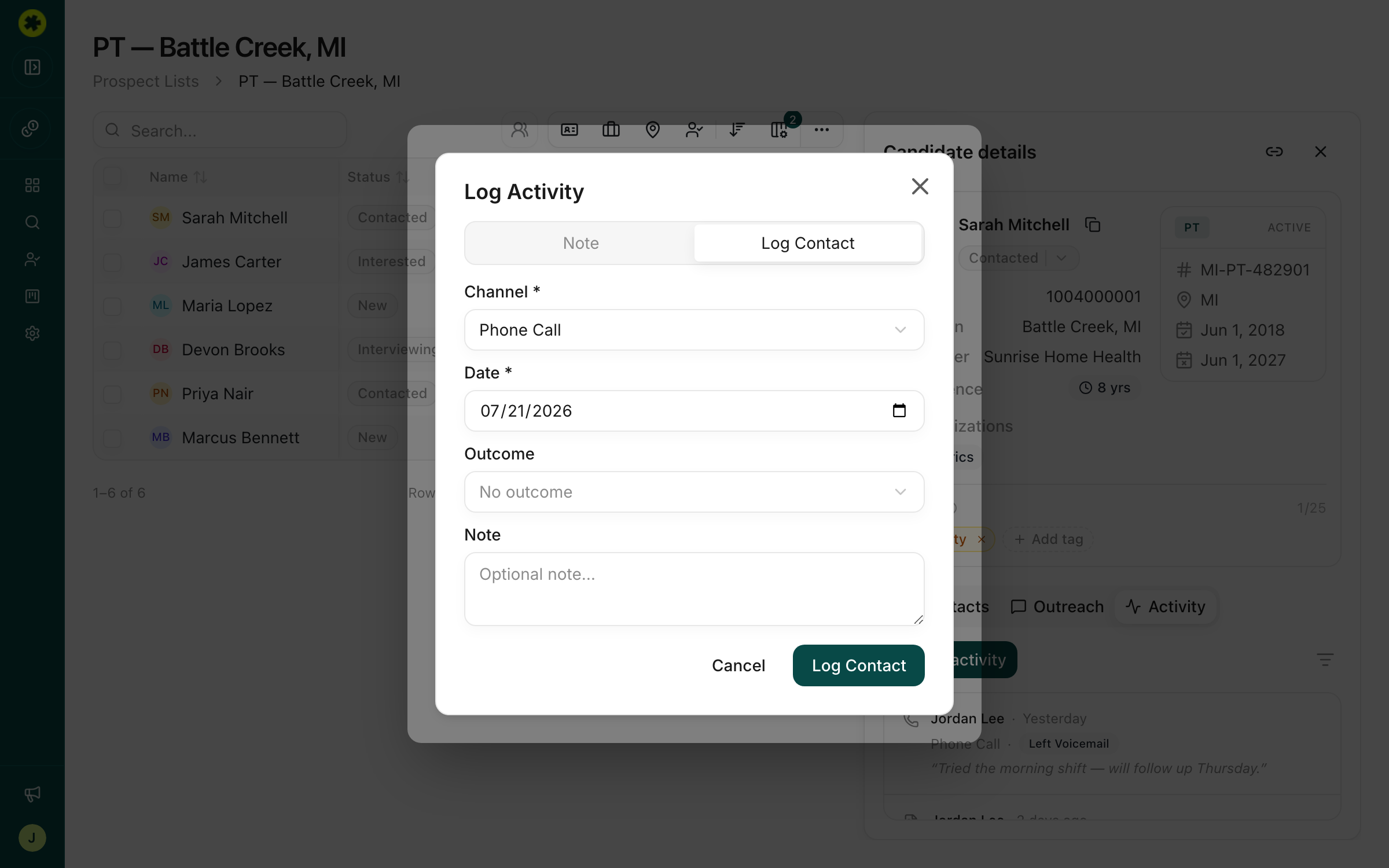
Add a note
For context that isn't a contact attempt, choose Note in the Log Activity dialog instead, type your note, and save. Notes sit in the same Activity feed alongside your logged touchpoints.
What your team sees
Every entry shows who logged it and when, a color-coded channel/outcome badge, and any note — and it's visible to everyone in your organization, so the whole team stays aligned on a candidate.
Troubleshooting
Can I edit or delete a log entry?
Not right now — the activity log is append-only, so entries can't be changed once saved. If something's off, add a new entry with the correction.
What's the difference between the Activity and Outreach tabs?
Outreach is for drafting and sending messages. Activity is for logging contact attempts that already happened (a call you made, an email you sent) and for team notes.
Related articles
Track where each candidate stands
Move candidates through your stages — New through Hired — individually or in bulk, so your team shares one view.
OutreachHow to reach out to a candidate
The three ways to contact candidates — one at a time, in bulk, or through your ATS — and how to choose.