Understand how Pickle works
How Pickle fits outbound healthcare recruiting — sourcing clinicians, reaching out, and building relationships through to the hire.
Healthcare recruiting is outbound work. The clinicians you want are usually already employed, not scrolling job boards — so the job is to go find the right people, reach out directly, and build relationships until they're ready to make a move. Pickle is built for exactly that: proactive sourcing and relationship-building, not managing a pile of inbound applications.
That work tends to follow the same path — find who fits, get their contact details, reach out, and keep tabs on everyone until someone signs. Here's how each part lines up in Pickle.
Sourcing — you start in Search
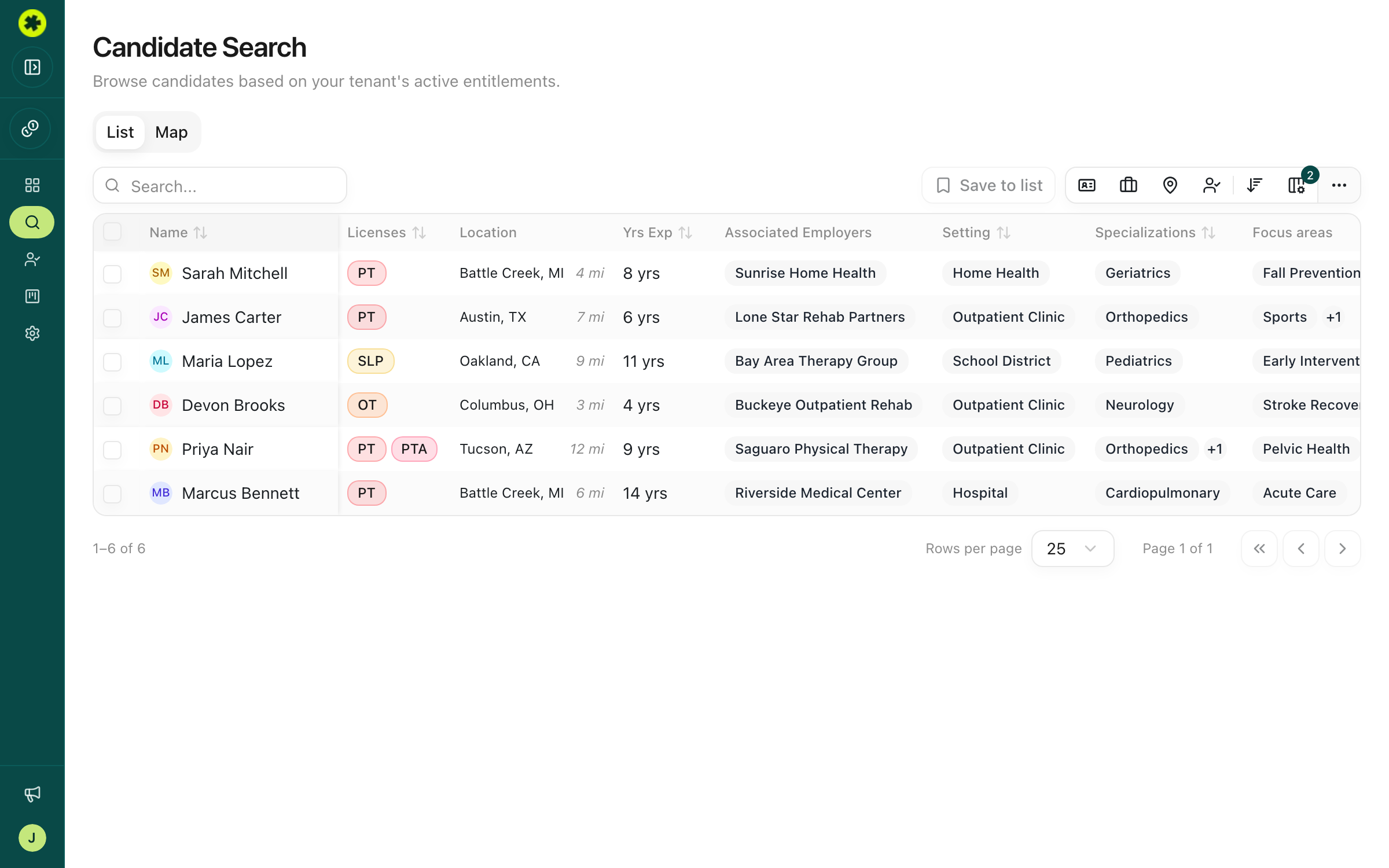
When you pick up a role, you go to Search. It's the full database of licensed clinicians, and you filter it down — by license and specialty, location, years of experience, current or past employer — until you're looking at people who genuinely fit the job. This is where all the finding and filtering happens.
Building a shortlist — you save to a Prospect List
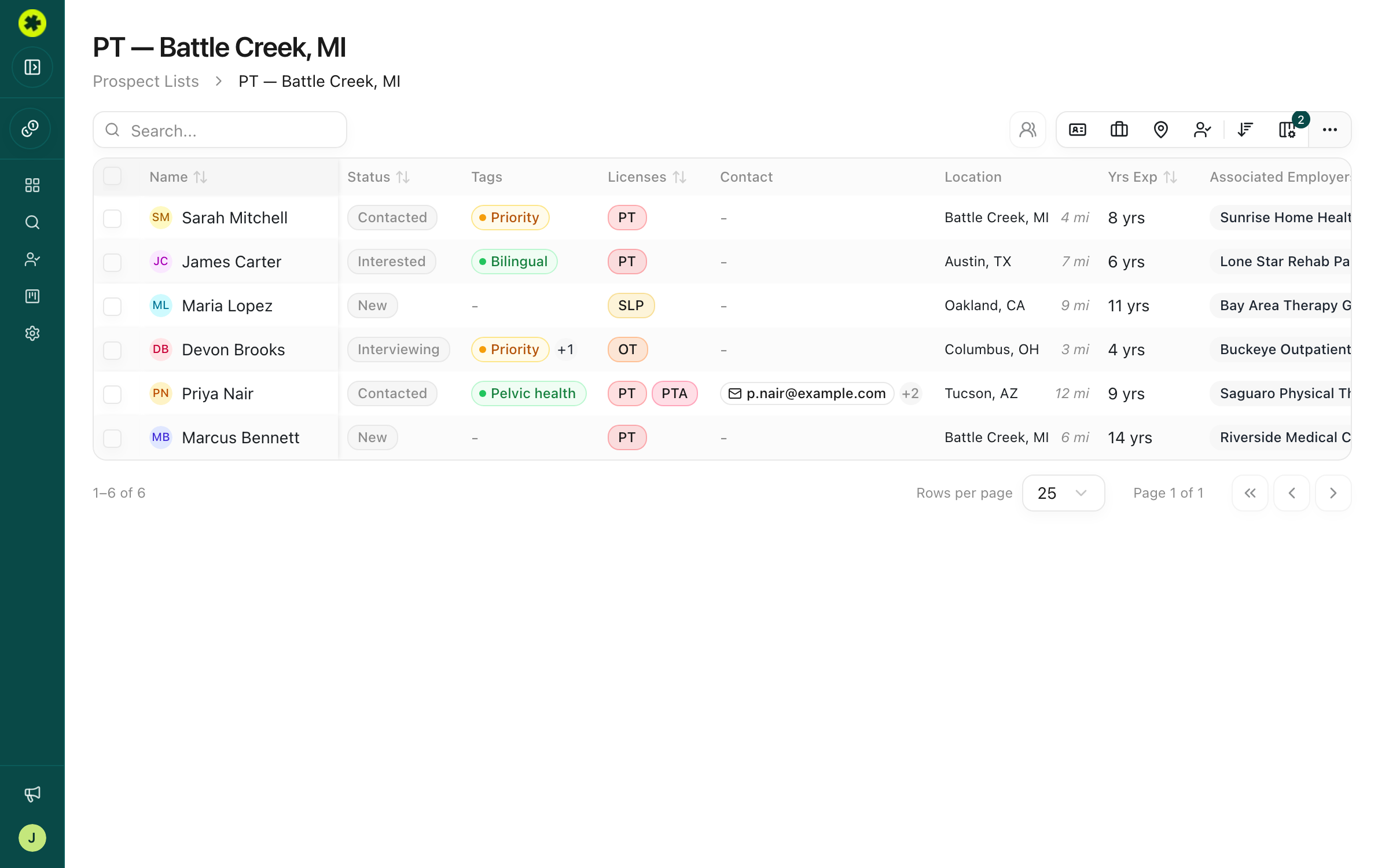
The clinicians worth pursuing go into a prospect list — your working set for that role or market. Once they're on a list, the list is where you actually work them: check their profiles, get contact info, reach out, and track progress. Think of Search as the whole talent pool and a list as the shortlist you've pulled from it.
Reaching out — contact info, then outreach
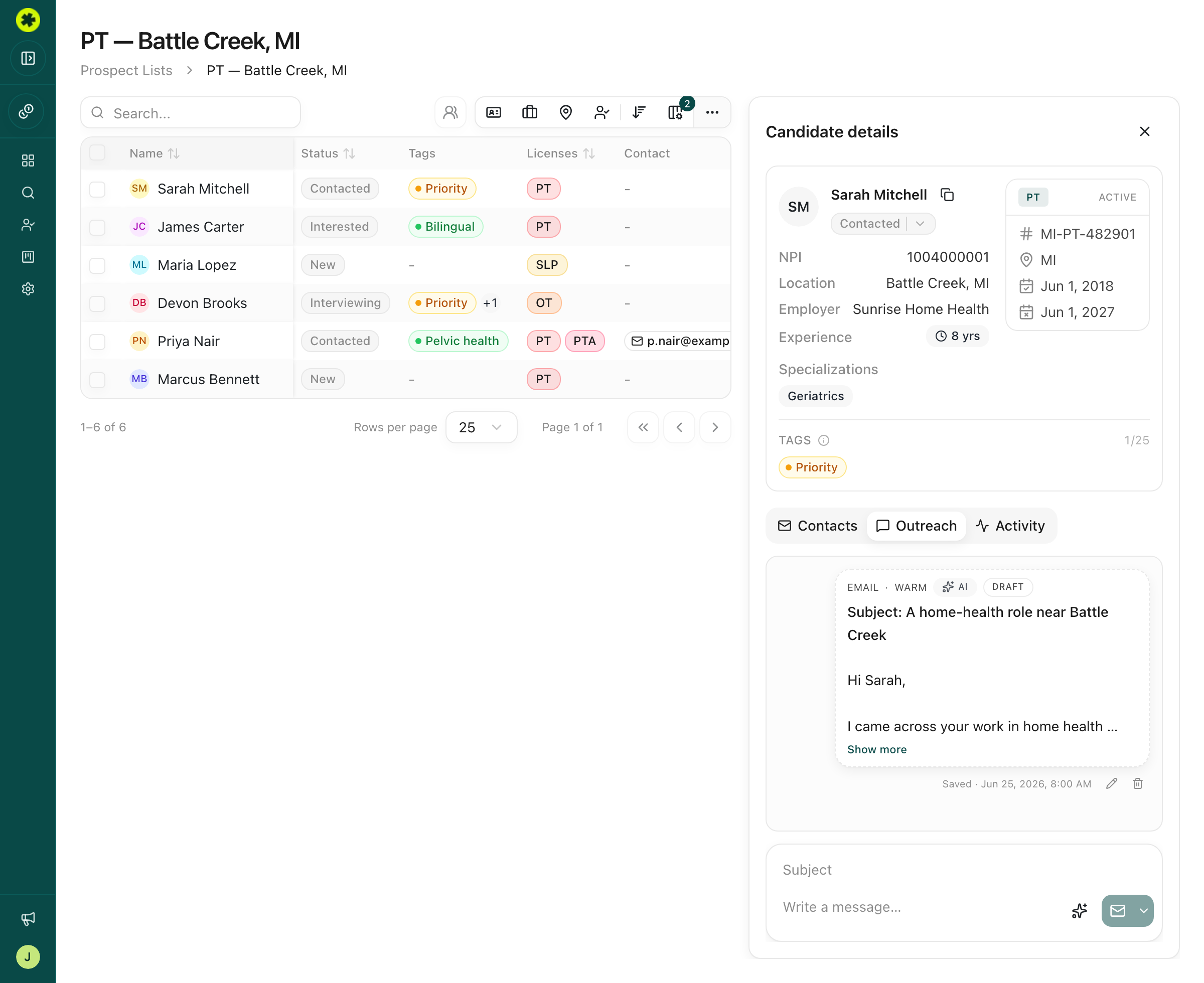
To contact someone, you first unlock their contact info (the one action that uses credits). Then you draft outreach right from their profile — Pickle writes a personalized first message from their background, and hands it to your email client or LinkedIn to actually send.
Tracking and building relationships
Sourcing is rarely one-and-done — a clinician who's a "not right now" today may be your best candidate in six months. As people reply, you move them through your stages (New → Contacted → Interested → Interviewing → Hired), log your calls and emails, and add notes or tags so nothing gets lost. It's all shared with your team, so whoever picks a candidate up next sees the whole relationship history.
Finding your way around
The left sidebar is your map: Search, Prospect Lists, and Analytics, with Settings, your organization name, and your credit balance in the bottom-left. Click any candidate to open their detail panel on the right, with Contacts, Outreach, and Activity tabs.
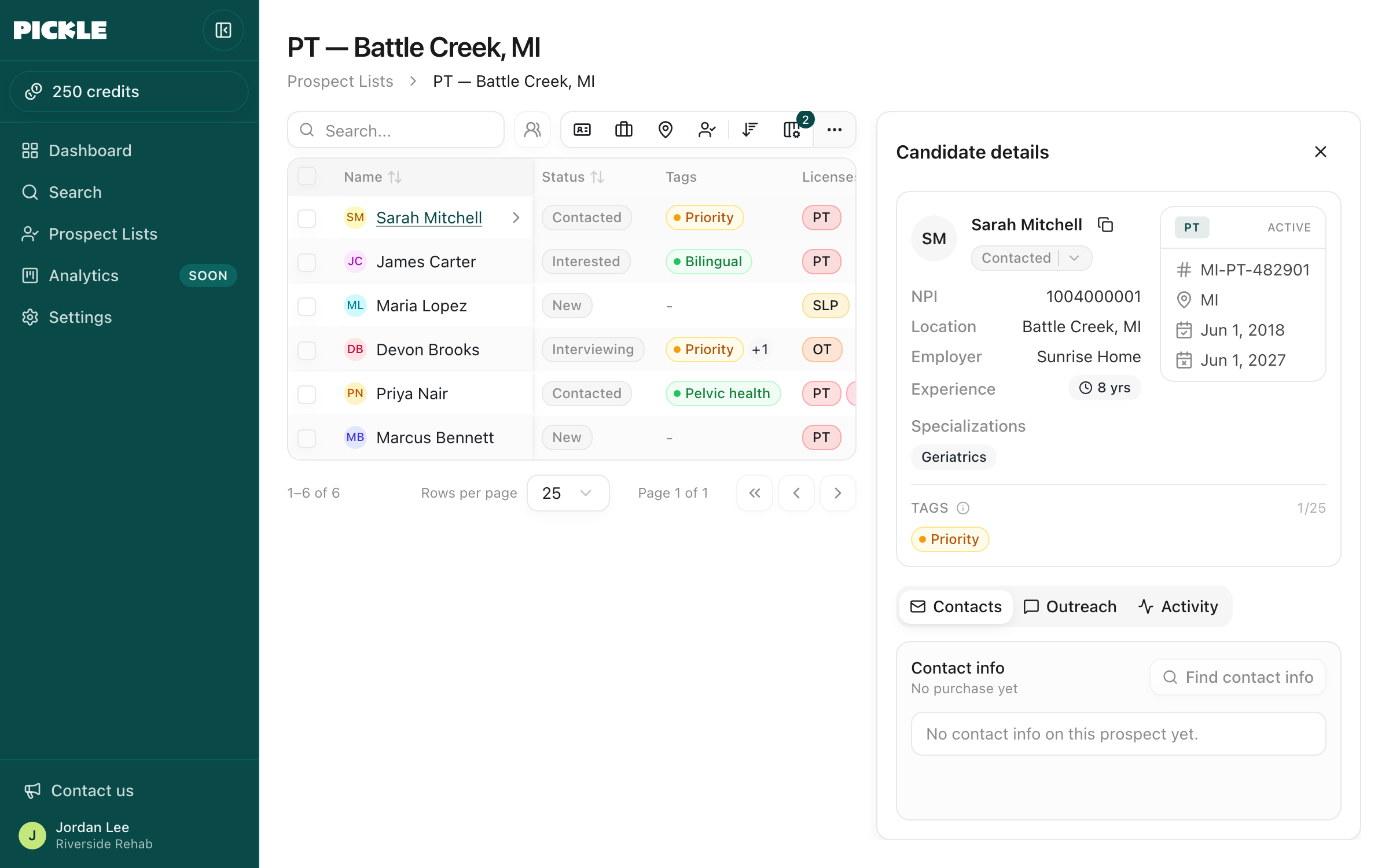
Most of this is free — searching, saving, status, notes, and export don't cost anything. Credits come into play only when you unlock contact info (and when you generate AI outreach). See credits and contact-data quality for the details.
Troubleshooting
I'm trying to filter but nothing happens, or every filter says "no options found."
You're on the Prospect Lists view rather than Search. Filtering by license, specialty, and location lives in Search — click Search in the left sidebar.
Can I search the whole database from inside a list?
No — a list only holds candidates you've already saved. To find new people, head back to Search, filter, and save them to the list from there.
Related articles
Search for clinicians in your market
Build a targeted search by location, license, specialty and experience to surface the clinicians who fit your role.
Managing ProspectsBuild a shortlist of candidates to pursue
Save candidates from your search into a named list — one list or several — with duplicates handled automatically.
Contact Info & CreditsGet a candidate's contact info
Unlock verified email and phone for a single candidate or a whole batch at once.