Invite teammates and set permissions
Add colleagues to your organization and give each the right level of access.
Bring the rest of your team into Pickle and set what each person can do — from full admins to read-only viewers — before they sign in.
Invite a member
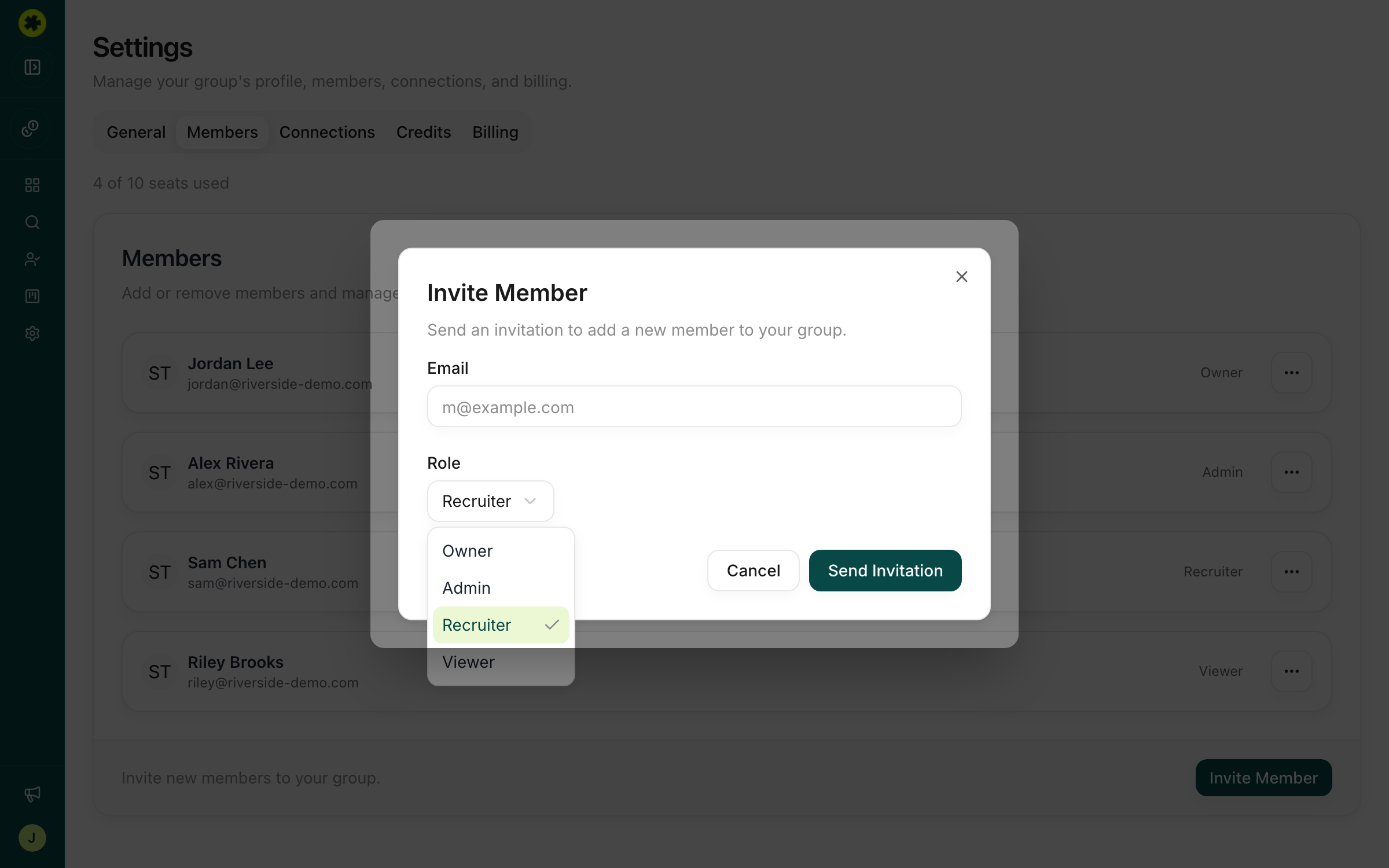
Go to Settings → Members and click Invite Member at the bottom of the card. Enter the person's email, pick a Role, and click Send Invitation. Pickle emails them a link to accept and set up their account.
Choose the right role
There are four roles:
- Owner — full access, including Billing; can manage every member.
- Admin — manages members and ATS connections; no Billing access.
- Recruiter — searches candidates, works prospect lists, and logs contact; can't change org settings.
- Viewer — read-only access to lists and candidates; can't take actions or change settings. See give limited access.
Manage or remove members
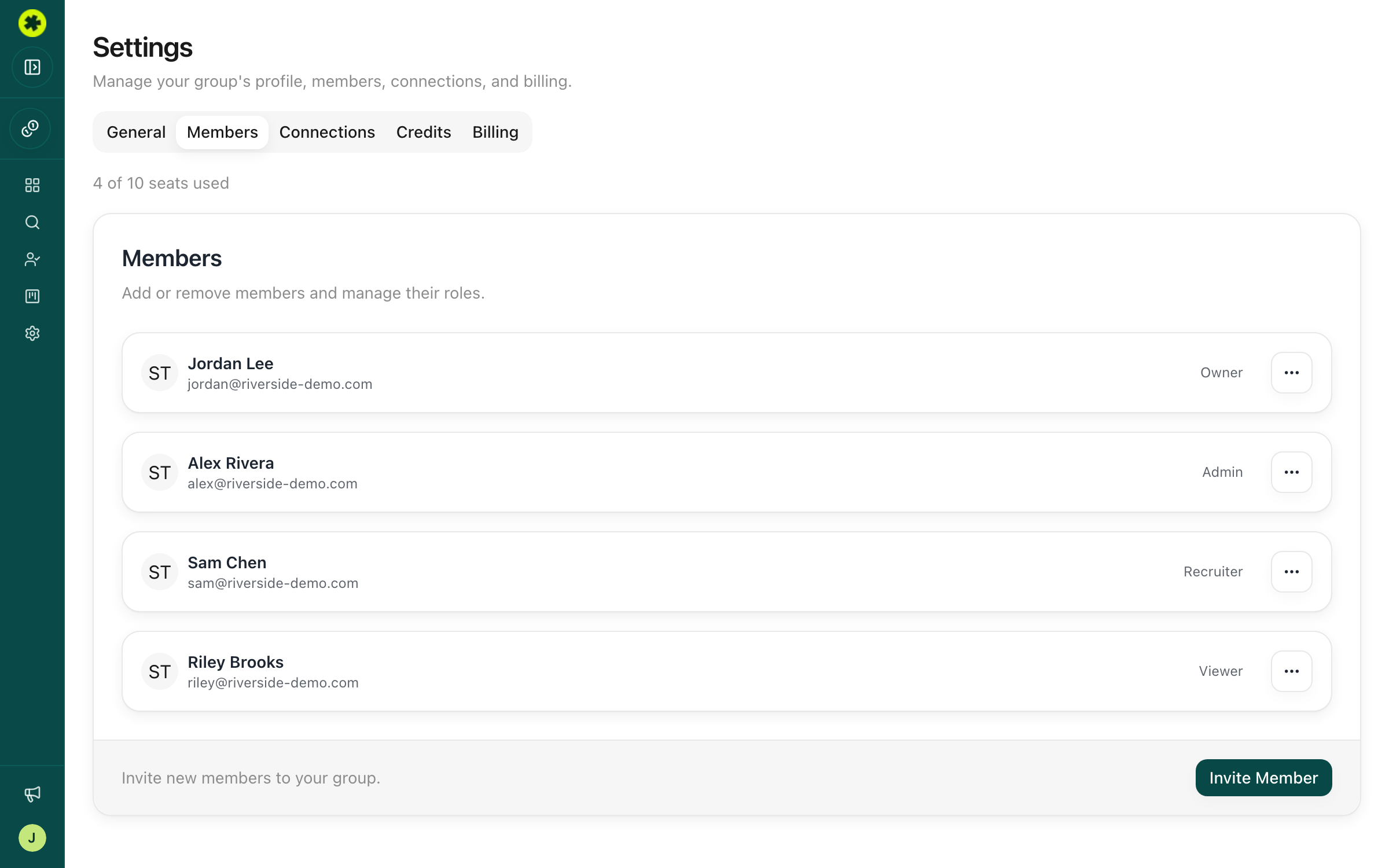
The Members page shows your seat usage ("4 of 10 seats used") and everyone's role. Click the ··· menu next to a member to Update Role or Remove Member. Removing someone frees their seat but keeps the lists, notes, and contact logs they created.
Troubleshooting
I don't see an Invite Member button.
Only Owners and Admins can invite people, so Recruiters and Viewers won't see the button. Ask an Owner or Admin to send the invite.
My teammate never got the invitation email.
Check their spam folder first. If it's still missing, their company's email server may be blocking Pickle — ask IT to allowlist the @withpickle.com domain, then re-send the invite from the Members page.
I can't invite anyone — it says I'm out of seats.
You've used all the seats on your plan ("X of Y seats used"). An Owner can add seats through Settings → Billing → Manage Billing, or remove an inactive member to free one up.
Related articles
Give limited or view-only access
Let clinic managers or outside agencies see your candidates and lists without spending credits or making changes.
Getting Started & AccountManage org settings, connections and billing
Where to configure your organization — name, team, ATS connections, credits, and billing.