Understand credits and contact-data quality
Know how credits are spent, check your balance and usage, and set expectations for the contact data you get back.
Credits are what you spend to unlock contact info, and the data you get back comes from third-party sources — so it helps to know how credits work and what to expect from the results.
How credits are spent
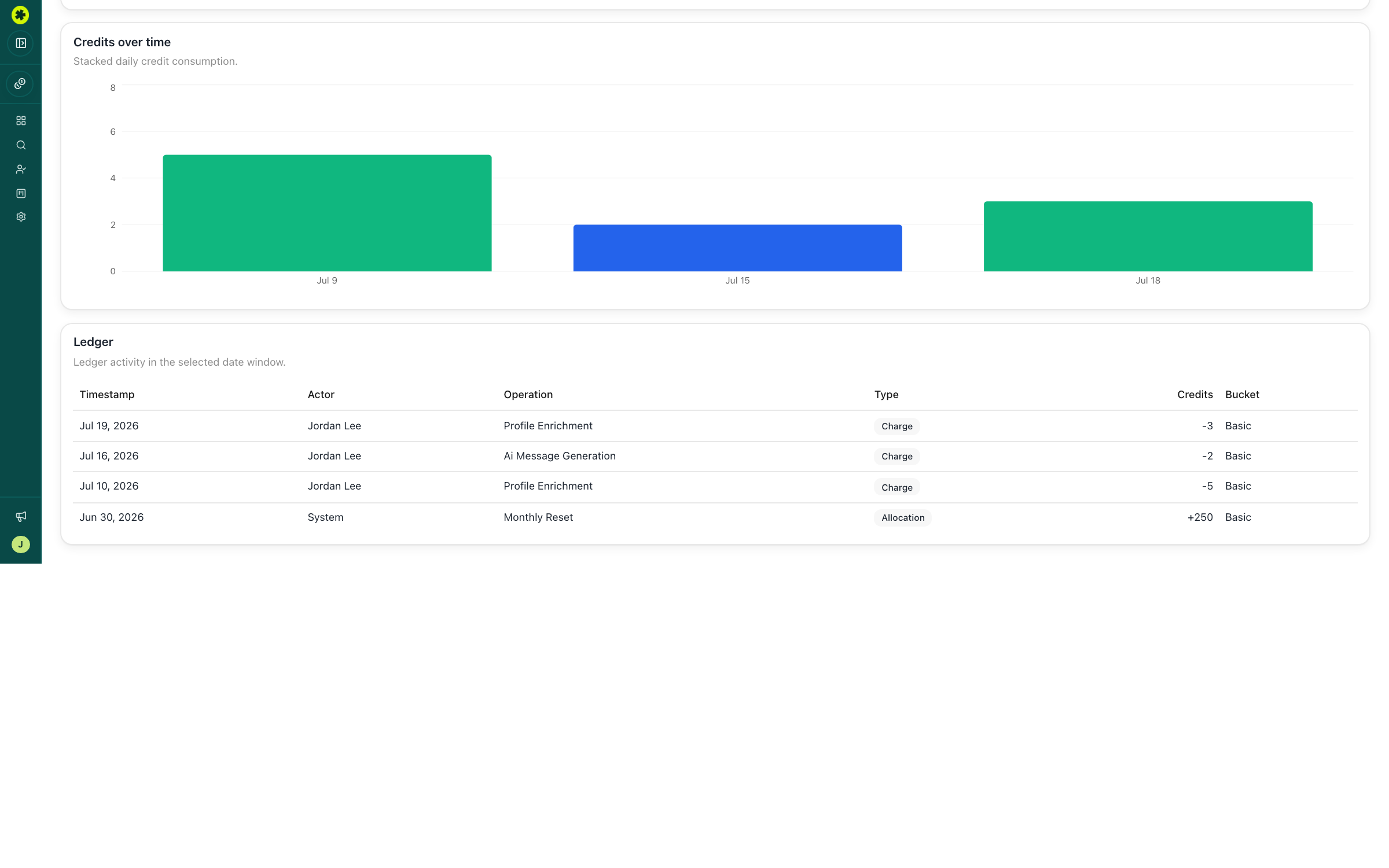
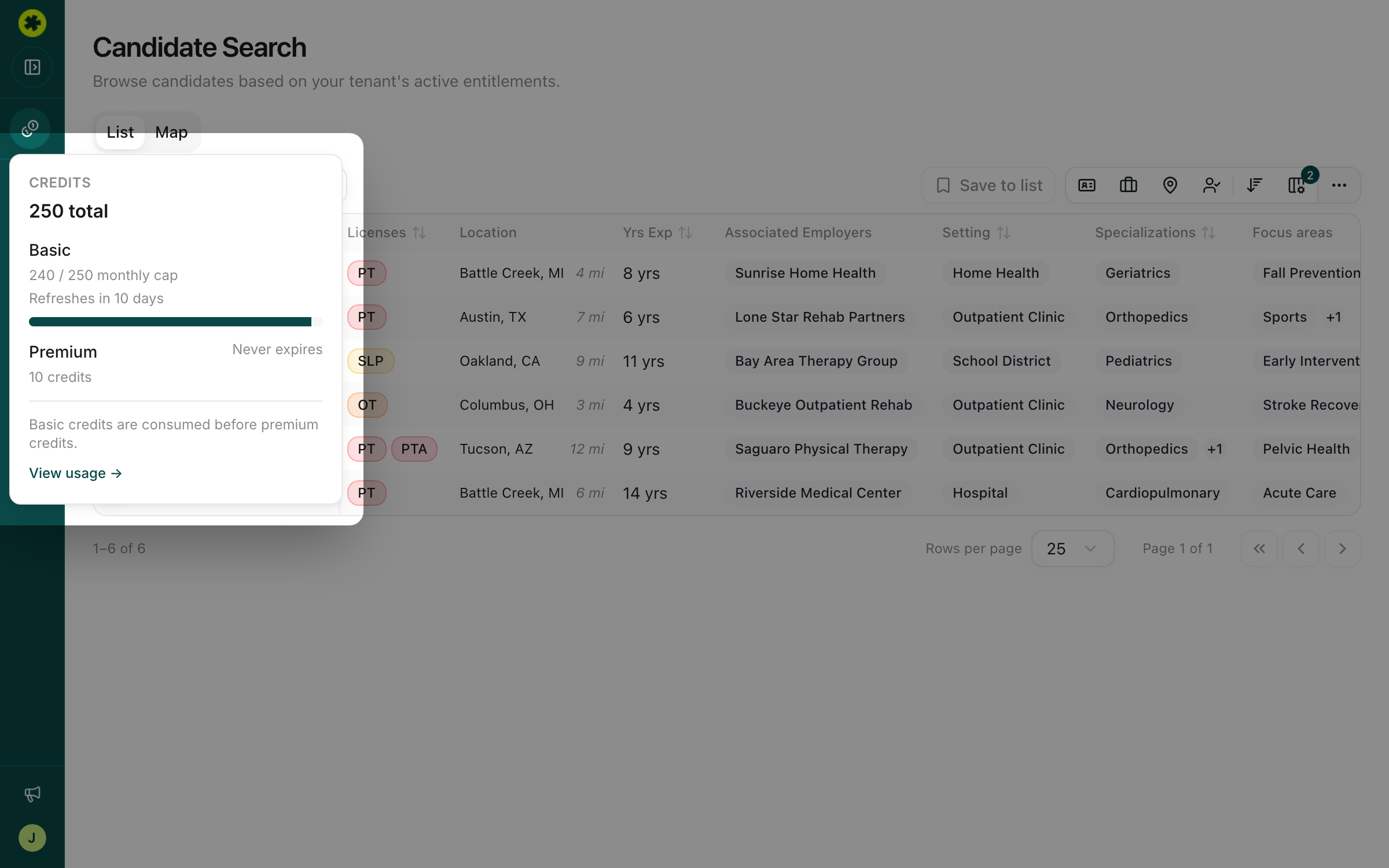
The main thing credits pay for is finding contact info — 1 credit per candidate, charged the moment you confirm the purchase (not when data comes back). Generating AI outreach messages also draws on credits. Searching, updating status, and exporting are free. Credits refresh on a monthly schedule — you'll see a Monthly Reset entry add your allocation back at the start of each billing period.
Check your balance and usage
Your current balance shows in the sidebar (e.g. "250 credits"). Click it, or go to Settings → Credits, to open the Credits page. There you'll find a usage chart (7 / 30 / 90-day windows) and a full Ledger — every credit event with the timestamp, who triggered it, the operation, and the credit bucket. Switch the chart between Operation, User, and Bucket views to see where credits are going.
What to expect from contact data
Pickle searches third-party sources, so results vary:
- Not every candidate has data — some come back with an email, some a phone, some nothing.
- Coverage varies by market — certain regions return less contact data than others.
- You may see more than one email or phone; try the most likely first and fall back to the others.
- Some data is stale — an email can bounce or a number can be out of date. Verify before a large send.
Keep credit spend under control
Only contact lookups (and AI message generation) cost credits, so most of the platform is free to use. To let a teammate, manager, or outside agency collaborate without spending credits, give them a view-only role — see invite your team. The usage chart's User view is the fastest way to see who's spending what.
Getting more credits
Use the Contact us button in the sidebar to reach the Pickle team, or — if you're an Owner — go to Settings → Billing → Manage Billing to adjust your plan through the Stripe portal.
Troubleshooting
A contact bounced, wouldn't connect, or turned out to be the wrong person.
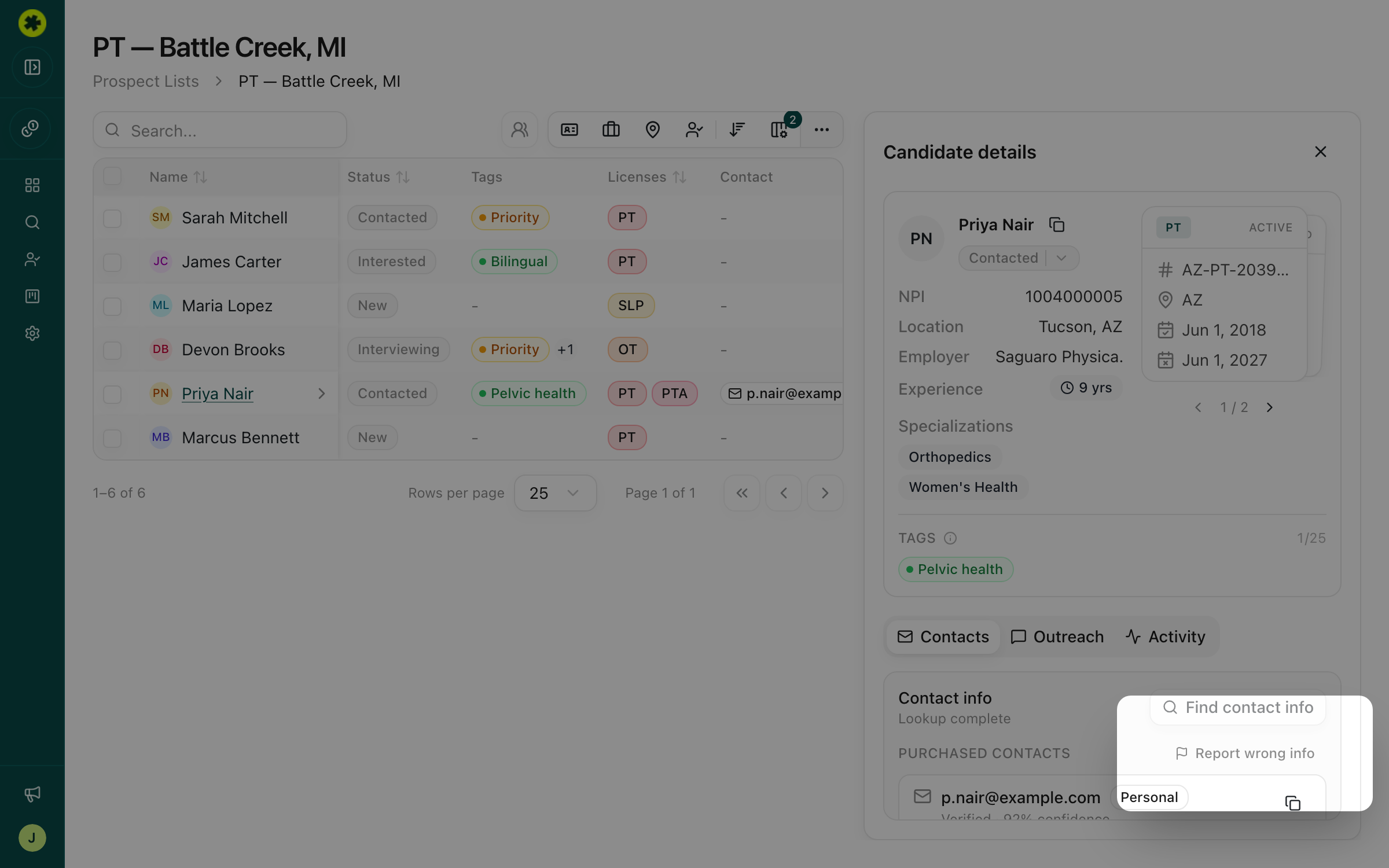
Contact data comes from third-party sources, so expect the occasional miss. If several emails or numbers were returned for the candidate, try the others first. If a contact is genuinely invalid — undeliverable, won't connect, or the wrong person — open the candidate's Contacts tab and click Report wrong info next to their purchased contacts. That opens a quick form to our team; we'll investigate and refund the credit.
How do I stop a teammate from using up our credits?
Give them a view-only role. They'll be able to see candidates and lists but won't be able to spend credits on contact lookups.
Where did our credits go?
Open Settings → Credits and check the Ledger — it logs every spend by user and operation. Remember the balance also resets monthly, which appears as a Monthly Reset entry.