Manage org settings, connections and billing
Where to configure your organization — name, team, ATS connections, credits, and billing.
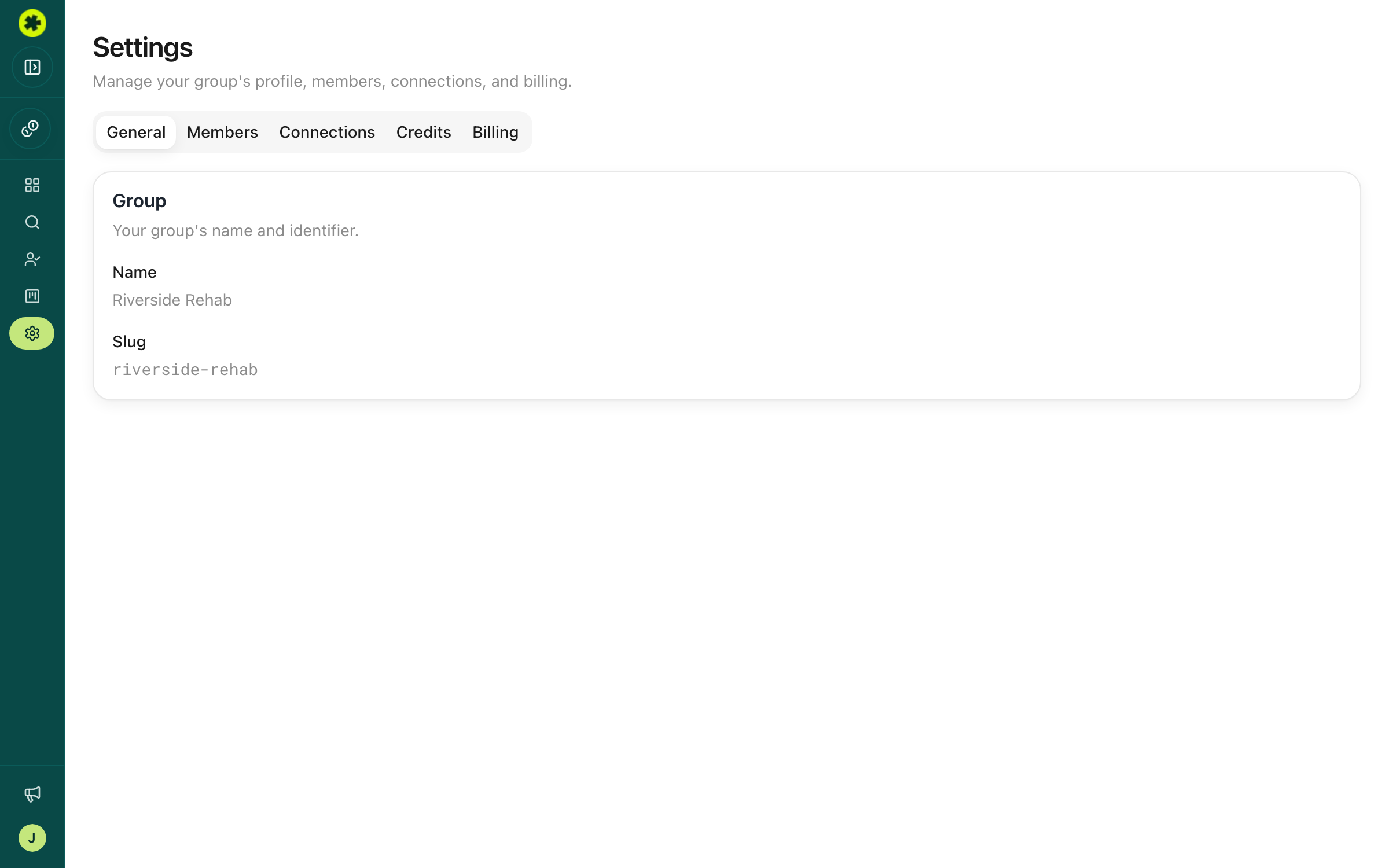
Everything about your organization's setup lives in one place: Settings, reachable from the left sidebar. Its own secondary nav has five sections.
The five settings sections
- General — your organization's display name and URL slug.
- Members — your team, their roles, seat usage, and invites. See invite teammates.
- Connections — ATS and CRM integrations for exporting candidates. See connect and push to your ATS.
- Credits — your consumption summary, usage chart, and full transaction ledger. See credits and contact-data quality.
- Billing — access to the Stripe portal to manage your subscription (Owners only).
Who can change what
Everyone can open Settings and view General, Members, Credits, and Connections. Only Owners and Admins can make changes to members and connections, and only Owners can see the Billing page.
Changing your org name
Your organization name and slug are shown as read-only on the General page. To change either, use the Contact us button in the sidebar to reach the Pickle team.
Your personal account settings
Settings covers the organization. For your own account — password, email, display name — click your name and organization at the bottom-left of the sidebar to open the Account and tenant options.
Troubleshooting
How do I change our organization's name?
The name and slug are read-only on the General page. Reach out to the Pickle team with the Contact us button in the sidebar and they'll update it for you.
I can't see the Billing page.
Billing is Owner-only. If you need billing changes and you're not an Owner, ask an Owner on your account to make them.
The settings menu disappeared.
The settings sub-navigation only shows while you're inside Settings. When you're in Search or Prospect Lists, the sidebar shows the app navigation instead — head back to any Settings section to see it again.
Related articles
Invite teammates and set permissions
Add colleagues to your organization and give each the right level of access.
Contact Info & CreditsUnderstand credits and contact-data quality
Know how credits are spent, check your balance and usage, and set expectations for the contact data you get back.